
QR use case
Free Wedding QR Code Generator
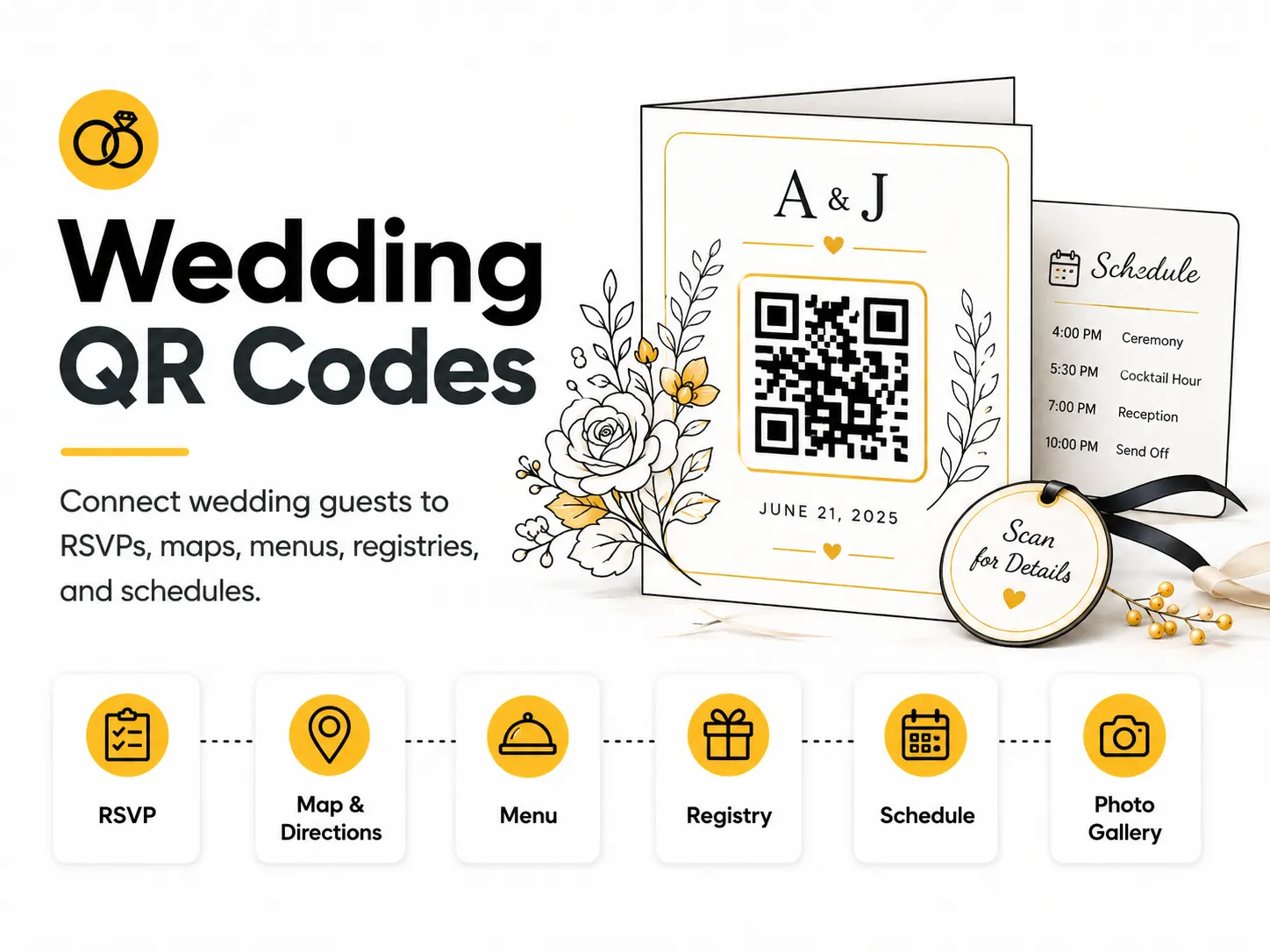
Wedding QR codes make it easier for guests to find important details without crowding the invitation or signage. They are especially helpful for RSVPs, venue directions, menus, registries, and photo upload links.
Quick answer
Use the free QR code generator for wedding qr codes
This page is built for people searching for a free wedding qr code generator, a simple wedding qr code maker, or a fast way to create wedding qr codes online. It focuses on practical examples, reliable print use, clear scan context, and the free QR code generator workflow.
Most visitors want a free QR code generator that gets them from idea to download quickly: choose Website URL, enter your wedding website, RSVP form, map, menu, or registry link, download a clean code, and test it before printing.
Common searches covered here
What this QR code should open
- A mobile-friendly destination that matches the promise next to the QR code, such as your wedding website, RSVP form, map, menu, or registry link.
- Place an RSVP QR code on invitations.
- Add a schedule QR code to welcome bags.
- Link reception signs to the menu or photo album.
- A page or file you control, so the destination can stay available after the QR code is printed.
Where to place it
- Use this QR code where people already need to connect wedding guests to RSVPs, maps, menus, registries, and schedules.
- Place it on a clean area of the design with a visible quiet zone around the code.
- Use it on printed materials people can hold or pause near, such as cards, signs, flyers, packaging, table displays, posters, and handouts.
- Keep it close to a short written call to action so scanners know what they will open.
Practical examples
What to plan before printing
A strong wedding qr codes starts with a clear destination, useful nearby text, and a page that works well on mobile. The QR code should help someone take one specific action instead of making them guess what happens after scanning.
QR For Everyone currently creates static QR codes. Static QR codes directly contain the link or data you enter, so the printed pattern cannot be edited later. If the content may change, point the code to a URL you control and update that page instead.
Before you publish or print, test the final QR code on more than one phone, from the real scanning distance, and under the same lighting or material conditions people will use.
How to turn scans into action
A QR code is only useful when the scan path is obvious. Treat the code, nearby text, and destination page as one small conversion flow: people should understand why to scan, what will open, and what to do next.
- Use a direct CTA such as "Scan to open wedding" or "Scan for details" instead of vague text.
- Send scanners to a page that loads quickly on mobile and answers the need created by the printed material.
- Keep the static QR code destination stable. If content may change, encode a URL you control and update that page later.
- Test the QR code from the real scanning distance, on more than one phone, before printing or sharing.
How to create this QR code
- 1Open the free QR code generator and choose Website URL.
- 2Enter your wedding website, RSVP form, map, menu, or registry link.
- 3Customize the foreground color, background color, size, margin, and error correction level if needed.
- 4Download the QR code as PNG or SVG.
- 5Scan the finished QR code on a phone before using it in print or sharing it publicly.
Best practices
- Use one clear destination per QR code.
- Make the linked page friendly for older guests.
- Print a test invitation before ordering a full batch.
Common mistakes
- Changing the RSVP link after invitations are mailed.
- Using decorative colors with poor contrast.
- Making guests scan multiple codes for basic details.
Ready to make one?
Use the free QR code maker to create wedding qr codes for place an rsvp qr code on invitations, add a schedule qr code to welcome bags, or any similar use case. No account is required to create static QR codes.
Frequently Asked Questions
How do I create wedding qr codes?
Open the free QR code generator, choose Website URL, enter your wedding website, RSVP form, map, menu, or registry link, customize the design if needed, then download the QR code as PNG or SVG.
What should a wedding qr code link to?
Use the destination that matches the scan moment. Good options include place an rsvp qr code on invitations, add a schedule qr code to welcome bags, link reception signs to the menu or photo album.
Is this wedding qr code maker free?
Yes. QR For Everyone is a free QR code maker for static QR codes, including wedding qr codes, with PNG, SVG, WEBP, and JPG export options.
Can I use wedding qr codes for business?
Yes. QR For Everyone can be used for personal, nonprofit, educational, and business projects. You are responsible for the content and links you encode.
Can I edit the QR code after printing?
This tool currently creates static QR codes. A static QR code cannot be edited after printing, so use a destination URL you control if the content may change later.
Should I test the QR code before printing?
Yes. Always scan your QR code on multiple phones and from the final printed size before ordering signs, menus, packaging, cards, or flyers.
Which file type should I use for wedding qr codes?
Use SVG for professional design and print workflows. Use PNG or WEBP for everyday digital use, and JPG when you need a non-transparent image.